Build Shapes with Scene Builder
Place and edit generated Shapes, choose their appearance, configure stairs, block sight, and find every object in the Scene hierarchy.
Open Table, choose a scene, then choose Edit scene. Props & Shapes includes Box, Sphere, Cylinder, Cone, Capsule, Torus, Dodecahedron, Icosahedron and Stairs.
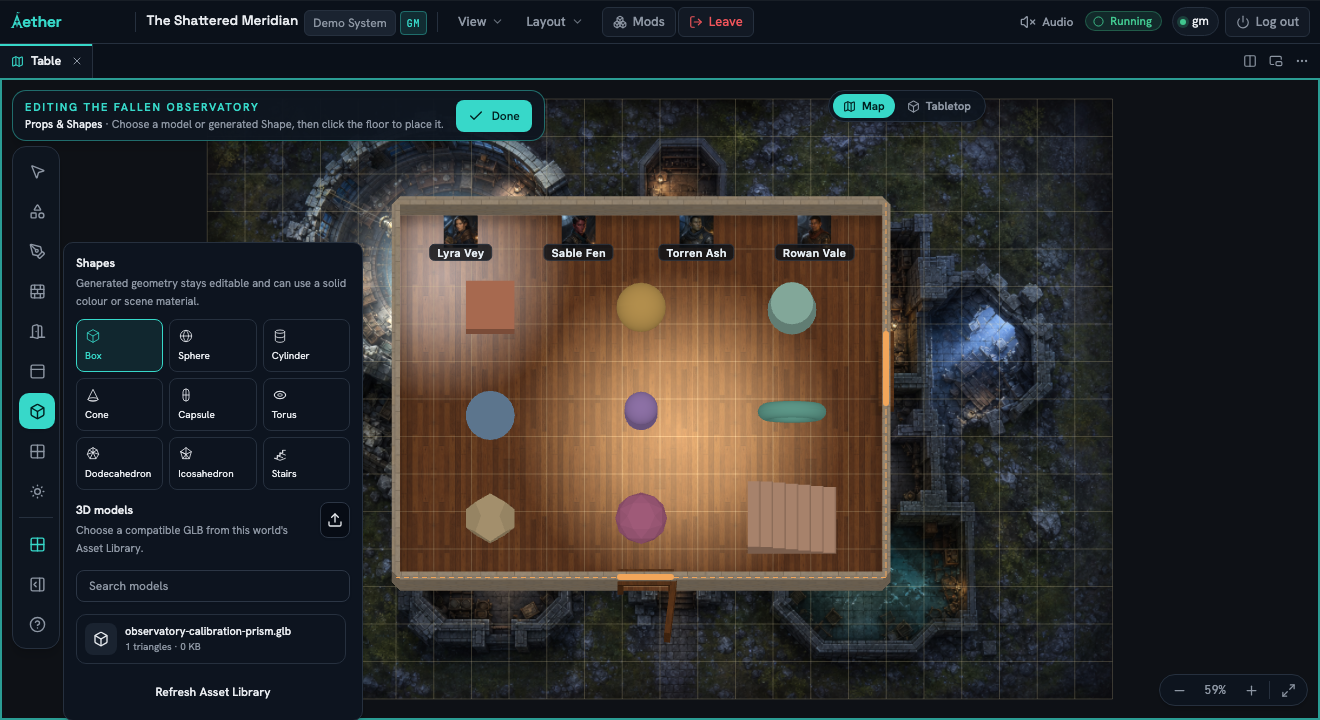
#Place and edit a Shape
Choose a Shape and click the floor. Select it again to edit its name, position, rotation, scale, appearance and shape-specific parameters. Drag its gizmos for visual adjustments or enter exact values in the Inspector; Escape cancels the active preview.
#Choose an appearance
In Appearance, choose Solid colour or Scene material. Solid colour uses one colour value. Scene material uses a material already saved with the scene plus an optional tint. Imported GLB props keep their embedded materials.
#Configure stairs
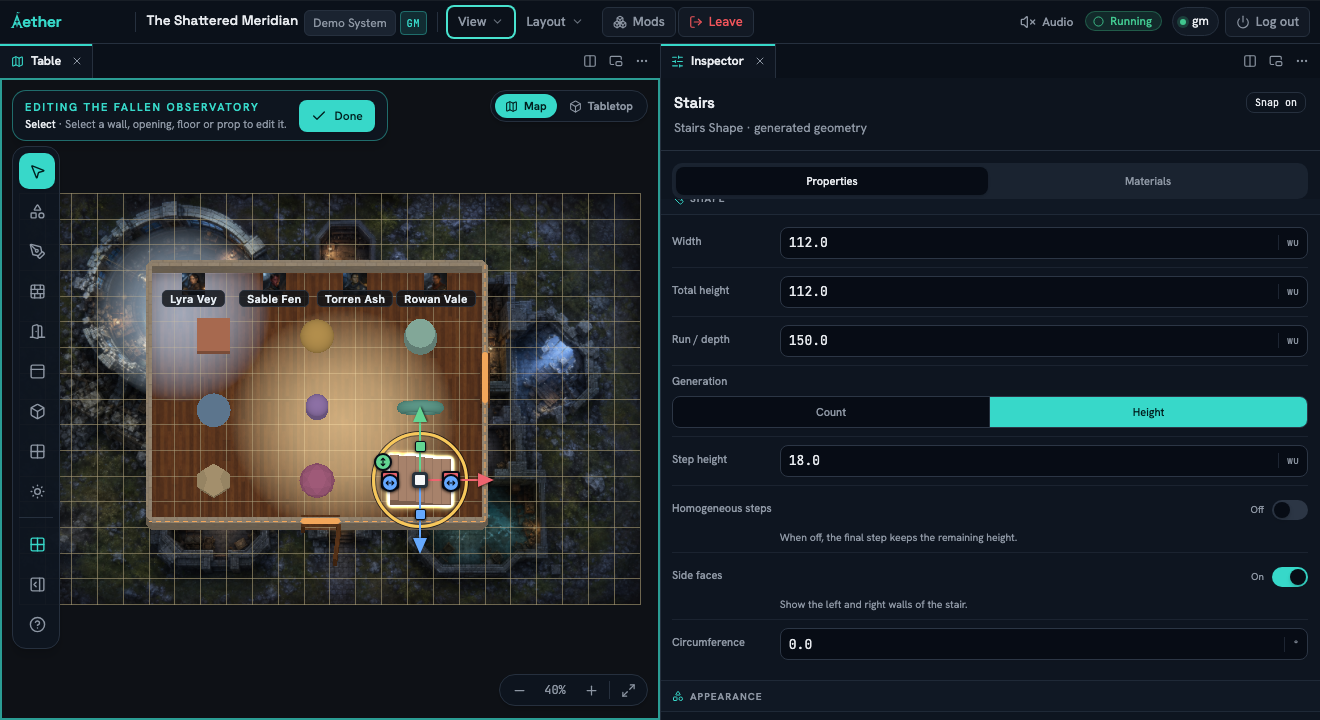
Stairs add Width, Total height, Run / depth and two construction modes:
- Count keeps the number of steps fixed and derives their height.
- Height keeps the step height fixed and derives the count. Turn off Homogeneous steps when the final step should absorb the remaining height.
Use Side faces to close or open the sides. Circumference bends the run from -360° to 360°. The Stair uses the same selection, transform and Inspector workflow as every other Shape.
#Make a Shape block sight
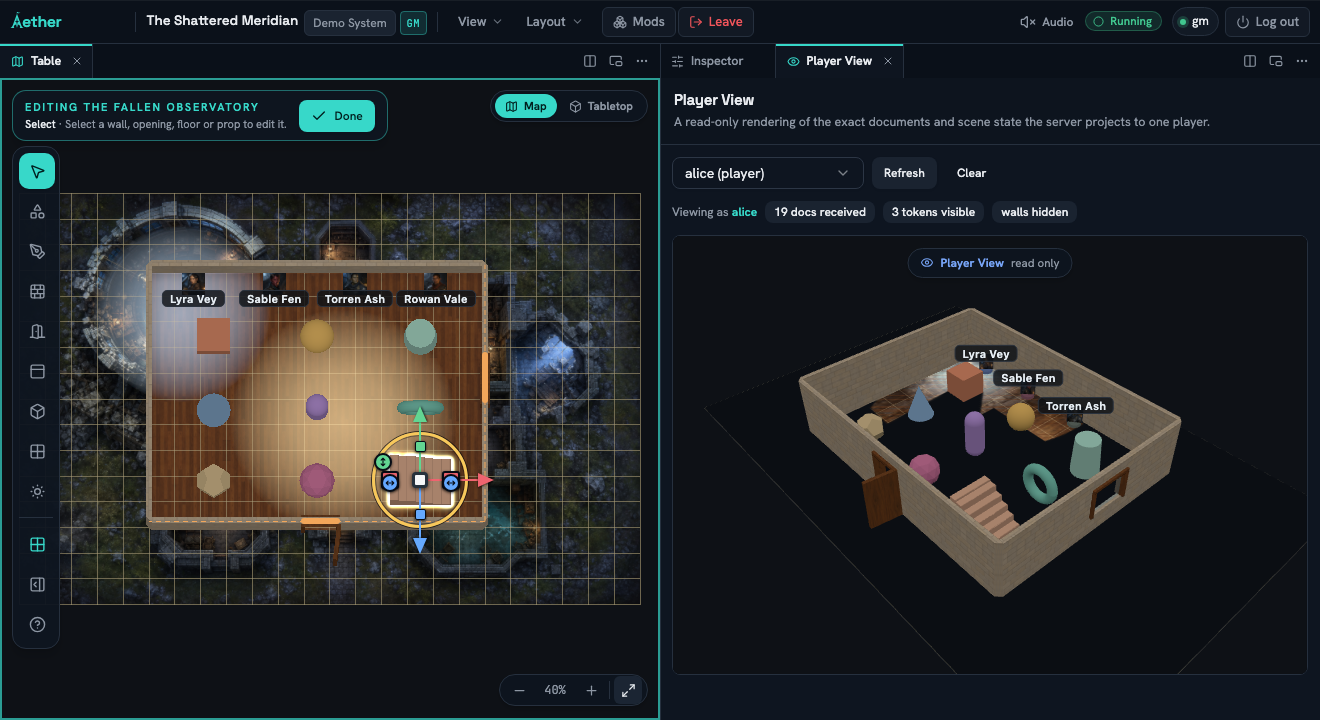
Turn on Blocks sight in the Shape's Sight section. Open View → Player View, choose a player with an owned vision token, and check which Shapes remain visible from that position.
#Use the Scene hierarchy
Open View → Hierarchy to select or focus an object that is tiny, overlapped, off-screen or hidden. The list includes floors, walls, openings, Shapes, imported props, tokens, drawings and images.
- Rename changes the object name.
- Lock removes its canvas editing handles.
- Hide removes it from GM and player views while keeping its saved settings. Hidden geometry no longer blocks sight.