Build a room with Scene Builder
Draw floors and walls, create scene materials from world images, anchor openings, and place your 3D assets in Scene Builder's edit mode.
Scene Builder adds floors, dimensional walls, anchored openings, materials and visual props to the current scene. It works with an empty scene, an existing background image, or a background used as the room's floor. The original background remains in place.
Open Table, choose the scene, then choose Edit scene at the lower right. Scene Builder stays active while you switch between Map and Tabletop; both views edit the same saved room.
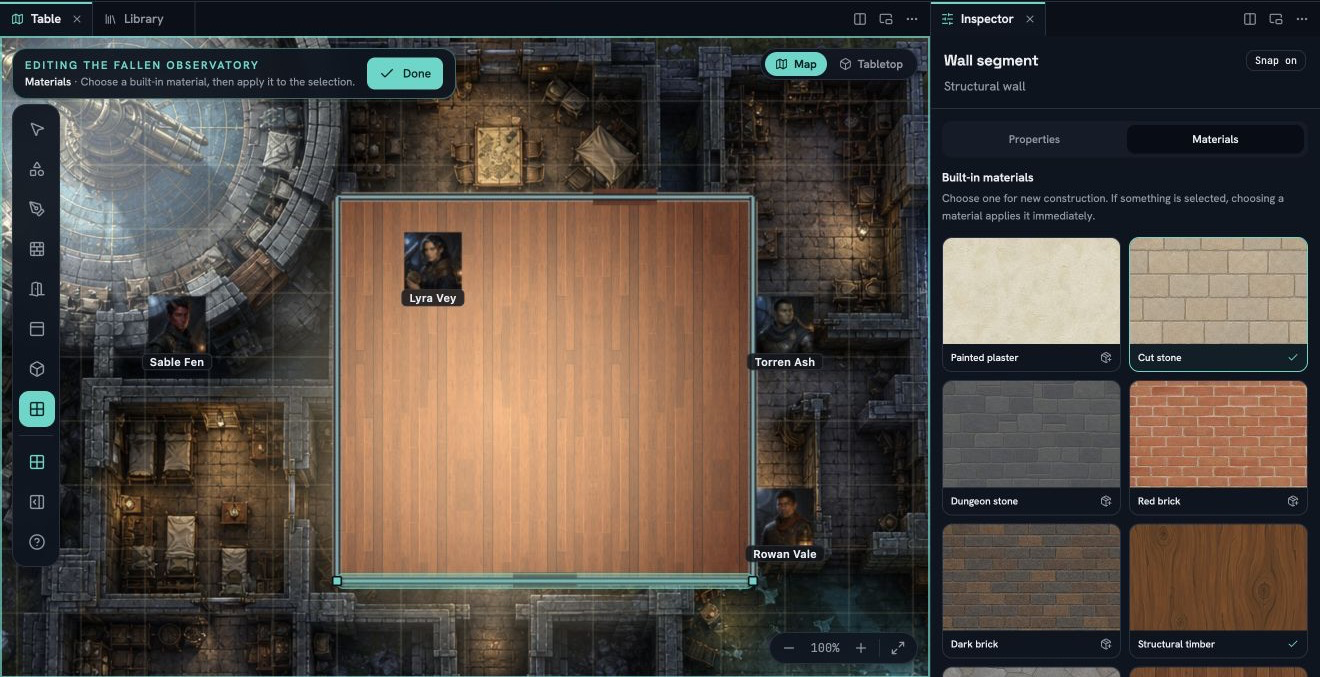
#Draw the room
Choose a tool from the Scene Builder rail:
- Room: drag from one corner to the opposite corner. Aether creates one floor and a connected four-wall run as one History action.
- Floor: click the corners of a room, corridor or other polygon when a rectangle is not enough.
- Wall run: draw connected wall segments. The run keeps shared endpoints so you can select and move its parts deliberately.
- Select: choose a floor, wall, opening or prop, drag its dedicated controls, or use the Inspector for exact values. Arrow keys nudge in the visible camera directions by one scene unit; hold Shift to nudge by one grid cell.
Grid snapping starts on. Choose the magnet button to turn it off, hold Alt or Option to invert it for one gesture, and hold Shift while drawing or moving a wall end or floor corner to constrain the direction. Press Escape during a drag to restore the value from the start of that drag. One completed drag or drawing gesture produces one History action; pointer movement during the gesture does not fill History with intermediate steps. If the server rejects a stale revision, invalid shape or out-of-range value, the preview returns to the saved structure and the Inspector shows the reason.
#Adjust a finished room
Choose Select, then select an object. Structural geometry keeps controls made for its shape:
- A wall has square handles for its two ends. Drag the highlighted wall body to move the complete segment without changing its length.
- A floor has one round handle at every corner. The outline turns red when a moved corner would cross another edge or collapse the floor; that shape cannot be committed.
- A door or window has a diamond that slides only along its host wall. A door also has a square hinge control, a round swing control and an Open or Close control. Doors and windows use amber guides so they stay distinguishable from selected walls.
Tokens, drawings and props share one transform gizmo. The arrows at the tips of its axes move the selection, the filled squares closer to the centre scale it, and the ring rotates it. Hold Shift while scaling to change every available axis together. A locked object omits controls it cannot use instead of showing a handle that will do nothing.
Every selected object receives a bright cream-and-gold outline. A selectable structural object under the pointer uses mint, a locked selection uses grey, and an invalid edit uses red. This keeps the selected geometry visible even when a gizmo is centred away from an individual object.
These handles keep the same screen size as you zoom Map or orbit Tabletop. Dragging one owns the pointer until it is committed or cancelled, so the same movement does not pan or orbit the camera. For keyboard access and exact placement, open the Inspector. It provides wall-end and floor-corner coordinates, opening offset and door options, and prop position, rotation and scale fields.
#Select several objects
With Select active, drag to draw a selection box. The drag may begin over a floor, wall, opening or prop; release without dragging when you only want to select that object. Aether includes every floor, wall, opening and prop whose projected picking bounds touch the box. That screen-space rule is the same in Map and Tabletop. It can include an object partly hidden behind room geometry; the box is an editing query, not a visibility or physics query.
Hold Shift while clicking or drawing a box to toggle each hit object in or out of the current selection. A drag without Shift replaces the selection, and a click on empty space clears it.
The Inspector names every kind in the selection and shows only operations that apply to all of them. Delete applies to the complete selection as one gesture. Materials are available only when every selected object accepts a structural material, so a selection containing a prop cannot be partly repainted. Compatible tokens, drawings and props share one transform gizmo at the centre of their projected selection bounds while every member keeps its own outline. Structural topology handles remain available when the selection has one wall, floor or opening.
#Add doors and windows
Choose Door or Window, then click a wall. The opening stays anchored to that wall and cuts the affected wall pieces in both Map and Tabletop. Select it to slide it along the host wall or to enter its offset, width, height, sill and frame values.
Doors also expose hinge, swing and state. After you choose Done, a GM can double-click a door to open or close it. Players receive the live result but cannot operate the door in this release. A door's saved state is also the sight and movement state used by the server.
#Create and assign materials
Choose Materials to open the scene palette. In this scene lists every material already saved with the scene and how many floors, walls and opening frames use it. Available built-ins lists the materials that can be copied into this world. A built-in is identified by its source, library version and content hash, so an older adopted version stays in the scene while you add a newer one.
Choose Create material to use one of the world's Asset Library images. Select a PNG, JPEG or WebP already in the world, or choose Upload image to add one through the same Asset Library. Aether checks the stored bytes, MIME type and dimensions on the server. An image uploaded before this check existed is verified from its stored file the first time you select it. A missing or invalid file remains unavailable. An upload that finishes before you cancel remains in the Asset Library for another use.
The image limits are 25 MiB encoded, 8,192 pixels on either side, 20,000,000 pixels and 64 MiB of estimated decoded RGBA memory. One scene accepts 33,554,432 distinct material-image pixels and 128 MiB estimated decoded memory. Reusing one immutable image in several materials counts its texture once. A scene can contain 64 material entries.
Enter a name, then adjust Tint, Rotation, Tile width, Tile height, Roughness and Metalness while the draft wall and floor preview updates. Tile width and height are scene units, not image pixels. Save adds the material without changing a surface. Save and apply to selection adds it and paints the compatible selected floors, walls or opening frames as one History gesture. Cancel discards the draft and does not change the scene.
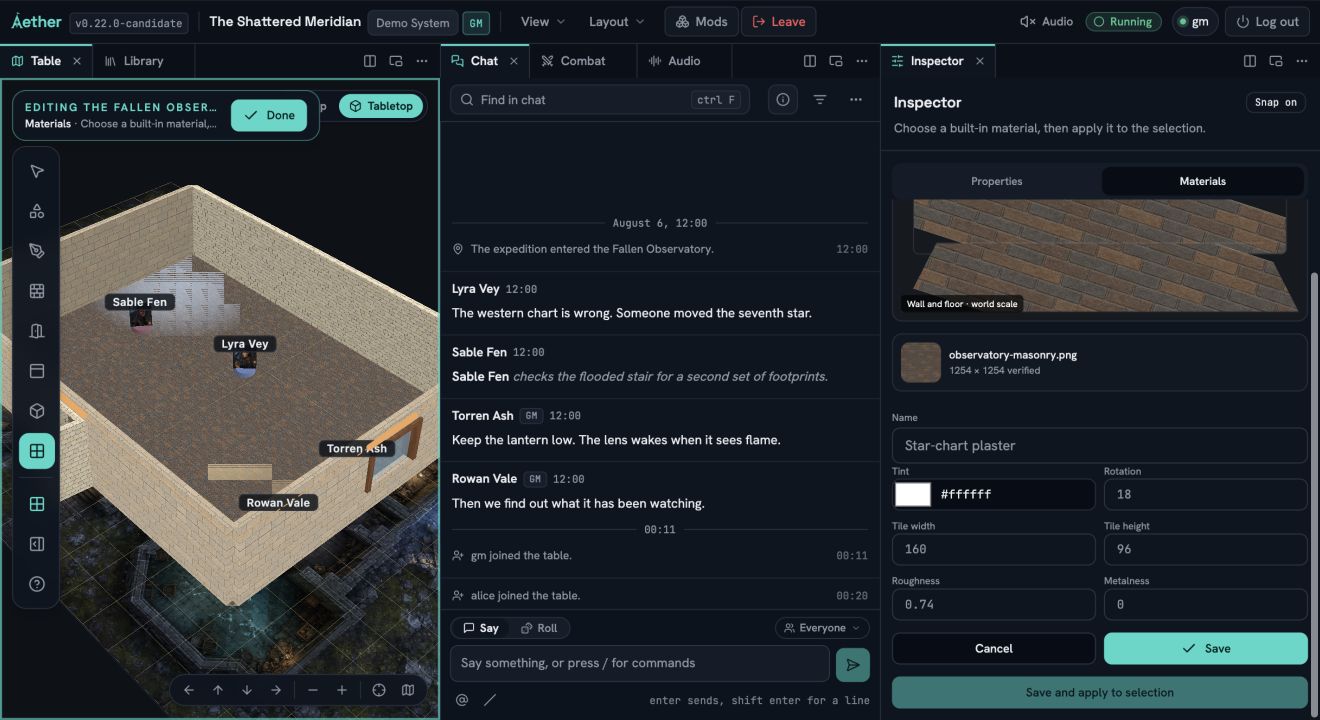
Select a saved material to Apply, Edit, Duplicate or Remove it. Editing tells you how many surfaces will change. A duplicate keeps the same immutable source image but becomes an independent palette entry, so one surface family can diverge without changing the original.
Removing an unused material asks for confirmation. Removing a referenced material shows the full affected count and requires one replacement. Aether updates every affected floor, wall and opening frame and removes the old material atomically. If the complete replacement cannot be accepted, the scene stays unchanged and the Inspector reports why.
Texture repeat uses mirrored wrapping in Map and Tabletop. If saved bytes later become unavailable, Aether shows an intentional magenta fallback and names the failed material instead of substituting a different surface.
#Place your 3D assets
Choose Prop to browse the 3D assets in your Asset Library, then select one or choose Import GLB. For now, an imported GLB can contain one mesh and material, with embedded base-colour textures and no cameras, lights, animation, skins, morph targets, external files or custom shaders. An unsupported file stays out of the scene and the docked Inspector explains why.
Choose Prop, click the floor, then select the prop to use the shared move, rotation and scale gizmo or enter the same values in the Inspector. Map shows a top-down footprint; Tabletop shows the full model and its vertical axis. Repeated copies of the same model share one asset-backed render batch.
Imported GLB props do not block sight or movement and have no physics. Generated Shapes and stairs have their own parameter and sight-footprint contract; see Build Shapes and stairs with Scene Builder. A scene accepts at most 256 placed props, 64 distinct prop assets and 500,000 effective prop triangles. The broader structural limits are 256 floor surfaces with up to 256 vertices each, 5,000 walls, 1,024 openings and 64 materials. Scene Builder remains single-level: it does not create terrain or stacked storeys.
#Physical walls versus barriers
Scene Builder walls are visible room geometry and also supply the server's sight and movement boundaries. Do not trace the Map's Barrier tool over them. Use a barrier only when you need rules geometry without a physical wall. The related barrier guide covers its separate editing overlay, openable variants and Player View checks.