A tour of the interface
Find the Table, Library, Chat, and Combat panels and restore the production layout.
The Aether window is made of docked panels. You can resize them, stack them as tabs, and move them to suit the way you run or play.
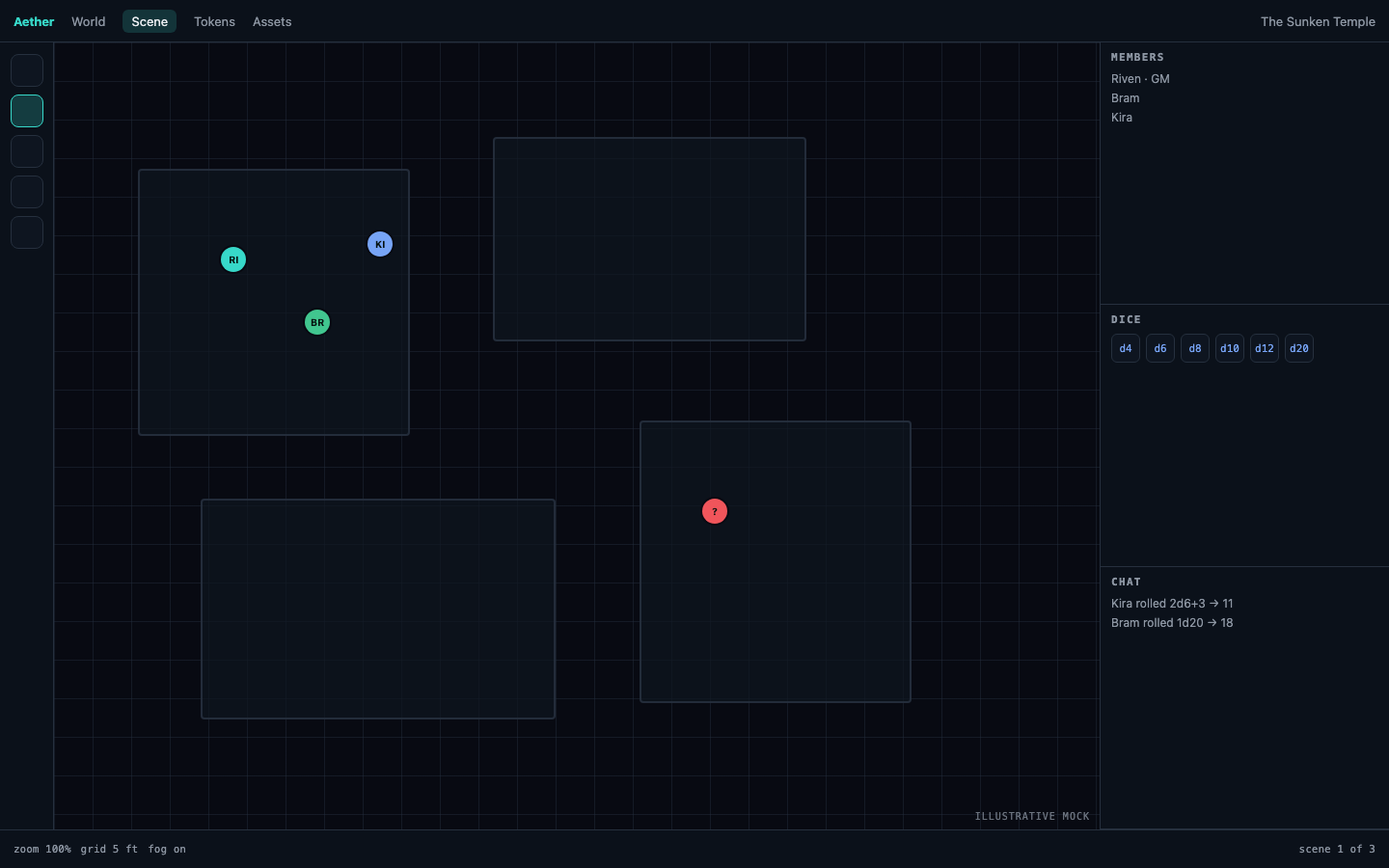
- Menus. View, Layout, and Help
- Table tools. Select, pan, token, wall, light, and measure
- Main area. Table and Library share the wider dock
- Right sidebar. Chat and Combat share the narrower dock
#Guided tours
Open Help → Tutorials to start or replay a guided tour from the table. The View and panels tour advances when you open the View menu, with either the mouse or keyboard. It does not start automatically when you join a world.
The first time you open Library, Aether may offer Library basics. The tour covers search, browse views, and New when you have permission to create content.
Pages and links is a separate manual tour for editable items. Its final two Records steps appear only for GMs.
If Library opens while another dialog, edit, drag, or tour is active, the automatic offer waits until the next time you open Library. You can disable automatic offers from Help → Tutorials without disabling the tours themselves.
Closing a tour keeps it In progress, so you can resume it later. Skipping or completing a tour prevents Aether from offering that version again automatically. Restart begins again from the first step without turning automatic offers back on.


#Table
Table holds the active scene. Use the tool rail to select, pan, place tokens, draw walls and lights, or measure. The GM receives editing tools that player seats do not.
#Library
Library holds the world beyond the current map: actors, notes, handouts, scenes, and campaign records. It shares the main dock with Table because GMs often move between the scene and its written material. Start with Organize your world in the Library.
#Chat and Combat
Chat holds conversation and server-produced built-in dice results. Combat holds the encounter order, current turn, and round. They share the right sidebar so either can remain beside Table or Library.
#History
Open View → History to inspect content changes newest first. Each person can undo or redo only their own available actions; a GM may select a player to inspect their list, but cannot reverse it for them. A blocked step stays visible with its reason until its owner chooses Forget unavailable step. History keeps at most 100 actions per person and survives reconnects and world restarts.

#Rearranging your layout
Drag a panel by its tab to move it. Drop it on an edge to make a dock or onto another tab group to stack it. Your layout is yours: changing it does not affect anyone else at the table. Use View to reopen an available panel.
Use Layout → Reset layout to restore Table and Library in the main 70% and Chat and Combat in the right 30%.
#Finding commands and leaving a table
Press Cmd/Ctrl+K, or choose View → Command menu, to search the panels and actions available to your role. The dialog does not open while you type in Chat, a form field, or an editor.
#Built-in dice
In Chat, switch the composer from Say to Roll, enter a formula such as 1d20+3,
and send it. The server decides the faces and Chat keeps the shared result.
Outside a text field, Cmd/Ctrl+Z asks the server to undo and
Cmd/Ctrl+Shift+Z asks it to redo. A focused text or rich-text editor keeps its local typing history; leaving or completing that editor commits the authoritative action.